Last Updated on May 23, 2026 by Parikshit
In today’s AI era, everyone wants to create AI video. There are many AI tools available, which often require knowledge to edit and convert these videos into AI video. But now you do not need any editing knowledge. Simple, you just give prompts or instructions, and your AI video is ready. Yes, and this latest AI video model is a multimodal tool that is recently launched by Google, which is Gemini Omni, and it was built by Google DeepMind.
It is made for people who want to create videos but do not have any background in video editing. Whether you run a small shop, teach students, make content online, or are simply curious, this tool is for you.
So, let’s explore this article in detail and know more about what Google Gemini Omni is, how it works, and how to write the prompts to get the best videos as output.
What Is Google Gemini Omni?
Source: deepmind
Gemini Omni is an AI tool that can understand text, images, audio, and video all at once. You give it any kind of input, and it creates an output. Right now, the biggest use of this tool is making videos from simple text instructions.
In simple terms, we can say that whatever you describe and give a prompt to Gemini Omni, it will create exactly the video as per your instructions or prompts.
Many AI tools needed very detailed and technical instructions, but Gemini Omni is different. You can write like you are talking to a friend, and it will understand what you mean. No technical words required.
How Is Gemini Omni Different From Other Ai Tools?
There are already many AI tools available for creating AI videos, but Gemini Omni is different due to these three reasons:
- You do not need to know technical terms. Writing “a quiet Indian village at sunset” is enough for it to create that scene.
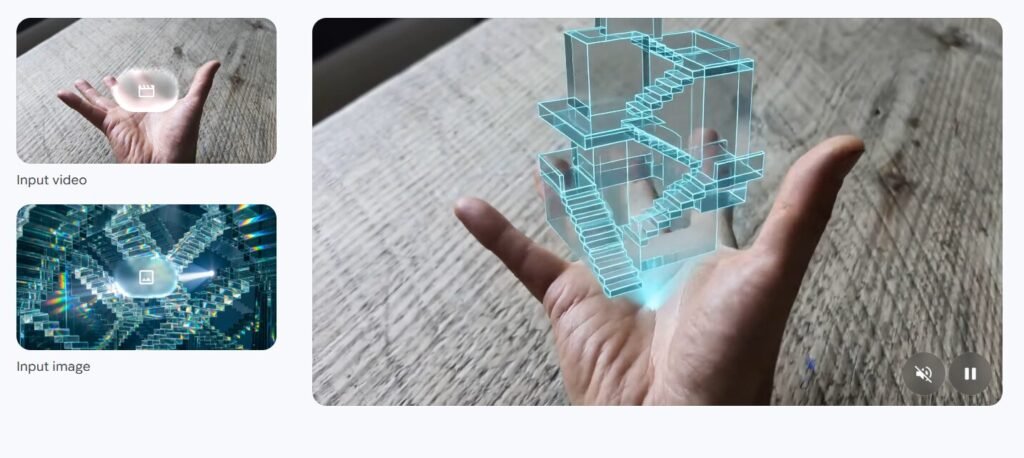
- Text, images, audio, and video are all processed at the same time to give you one clean output.
- In Gemini Omni, you can edit step by step, i.e., after the first video is ready, you can change just one thing at a time. You do not have to describe the whole scene again. The rest stays the same while it updates only what you asked.
Source: deepmind
How To Write Good Prompts For Creating The Videos In Gemini Omni?
A prompt is a simple instruction that gives the command to these AI tools. These prompts are generated by your required works, how you want images, or videos. In Gemini Omni, you do not have to give an advance prompt in detail. Just give instructions; it will create the video as per your choice.
Before creating the prompt for your video, you can keep some points in mind while making the prompt:
1. What Should Be The Angle And Movement Of The Camera?
Think about the angle and movement of the camera. It should be zoomed in or far away, and it should move slowly or stay still.
Example: “A close-up shot of a person’s hands, with the camera slowly pulling back to show the full room.”
2. What Style Should the Video Be?
Tell Gemini Omni about the overall feel of the video. Should it look like a real film, a cartoon, a painting, or something else?
Example: “Make it look like an old Bollywood film” or “Give this a cartoon style.”
3. What Should the Lighting Be Like?
Describe where the light is coming from and how it feels. Is it warm sunshine, a streetlamp at night, or soft indoor lighting?
Example: “Warm golden light coming through a window in the early morning.”
4. Where is the Scene Taking Place?
You do not need to describe every tiny detail of the location. Just give a general idea and Gemini Omni will fill in the rest.
Example: “A small village near a river, late in the evening.”
5. What is Happening in the Scene?
Describe the action. Who is in the video? What are they doing? How are they moving?
Example: “A young boy riding his bicycle and stopping near a school gate.”
Source: deepmind
How to Use Gemini Omni: Step by Step Procedure
Step 1: Open the app
You can use Gemini Omni in three places:
- Gemini App at gemini.google.com: Best for everyday use on your phone or computer.
- Google Flow at flow.google: Best for people who make videos regularly and want more creative control.
- YouTube Shorts: Best for making short videos to post online quickly.
Step 2: Upload a Video or Image (Only If You Need To)
If you want to edit a video you already have, upload it first. If you are making something brand new, you can start with just a text prompt. No upload needed.
Step 3: Write Your First Prompt
Use the five points above as a guide. Start simple and see what comes out.
Example prompt: “A young farmer walking through a green wheat field at sunrise, medium shot, warm golden light, slow and peaceful.”
Step 4: Edit One Thing at a Time
This is one of the best parts of Gemini Omni. Once your first video is ready, you do not have to start over to make a change. Just tell it what to update.
For example, after your first result, you can simply say: “Now change the background to a river.” Everything else in the scene stays exactly the same. Only the background changes.
This makes editing feel like a normal conversation rather than a technical process.
Step 5: Control the Camera Movement
You can also guide how the camera moves inside the video. Some words that work well in prompts:
- “One continuous shot” or “oner”: No cuts. The whole scene plays out in one smooth shot.
- “Static” or “locked off”: The camera does not move at all.
- “Push in” or “dolly zoom”: The camera slowly moves closer to the subject.
Source: deepmind
Real Prompt Examples from Google
Google DeepMind shared these examples on their official guide page. Notice how short and direct they are:
- Changing an object: “Change the butterfly to a bee.” Then: “Change the bee into a small swarm of fireflies.”
- Syncing lights with music: “The lights of the apartments start turning on in sync with the music.”
- Changing camera angle: “Change the camera angle to be over the violinist’s shoulder.”
- Changing video style: “Apply a vibrant coloured crayon look, with rich waxy textures and hand-drawn character designs.”
You do not need to write a full paragraph. One clear sentence is often enough. The simpler you write, the better the result.
What Are The Special Features You Can Use In Google Gemini Omni?
In the latest model of Google Gemini Omni, there are various special that can used, that are:
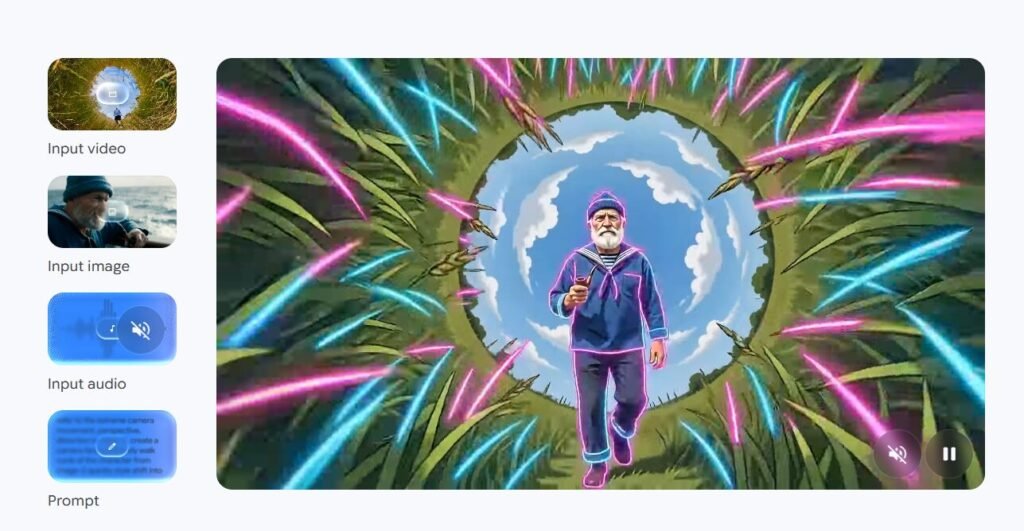
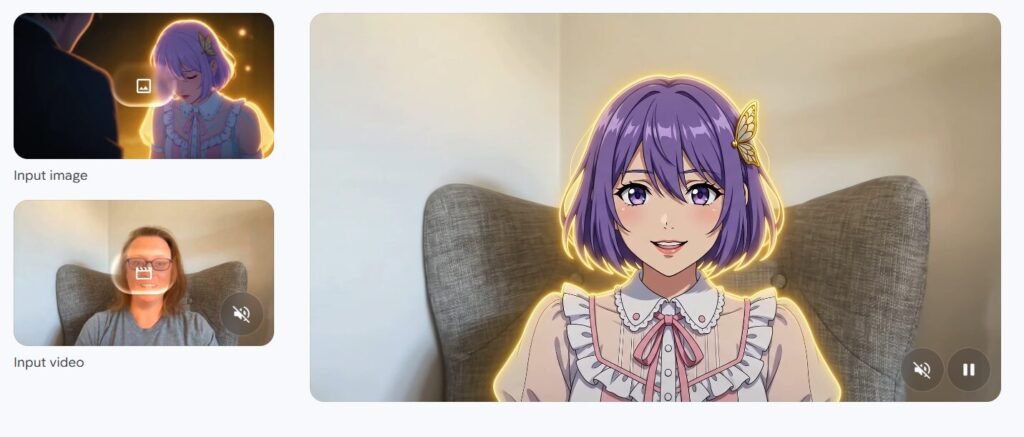
- Use A Reference Image Or Video To Create The Final Output
If you have a photo of your face, your shop, or any place, you can upload it and ask Gemini Omni to include it in the video. It will use that image as a reference throughout the scene.
- Change The Visual Style Of The Output Video
You can take any existing video and ask Gemini Omni to make it look completely different. Ask for anime style, a watercolour painting feel, or claymation. The motion and details stay the same. Only the look changes.
- Use A Story-Like Prompt To Use In The Output Video
If you already have a plan for your video, you can share it as a storyboard. This is just a set of key images or scenes that show what happens in order. Gemini Omni will use that to build the full video. Very useful for teachers and storytellers.
- It Can Also Keep The Same Characters
If you want the same person, object, or place to appear consistently across your video, upload a reference image of it. Gemini Omni will keep that character or thing looking the same from start to finish.
So, now you all can create an AI video with the help of Google Gemini Omni. This latest multi-model is so simple to use that even with normal instruction, you all can create a video from the editing of two videos in a single frame without using any advanced software. So, try this Google Gemini Omni, and edit your images and video by giving simple and easy instructions.
Sharing is always known to be the best part. So do share with your friend, and to read more articles like this, visit GKinfoBuzz regularly.