Last Updated on June 22, 2026 by Parikshit
How to Use WhatsApp Web: A Complete Step-By-Step Guide
Learn how to use WhatsApp Web with this complete step-by-step guide.
Key Takeaways
- WhatsApp Web allows the users to access messages, media, contacts, and group chat directly from laptops, desktops, and tablets by scanning a QR code, which makes communication easier and faster.
- Users can also send their photos, videos, documents, GIFs, and stickers, all features you can use easily in your WhatsApp Web.
- You can also link upto four devices to a single Whatsapp account, which allows you to make conversation even if your phone get switch-off or out of battery.
WhatsApp is one of the most popular messaging apps in the world, and billions of users use it every day to send text, voice notes, images, videos, and documents from their smartphones. It is one of the best messaging tools that is used for both professional and personal uses due to its advanced meta-encrypted communication security.
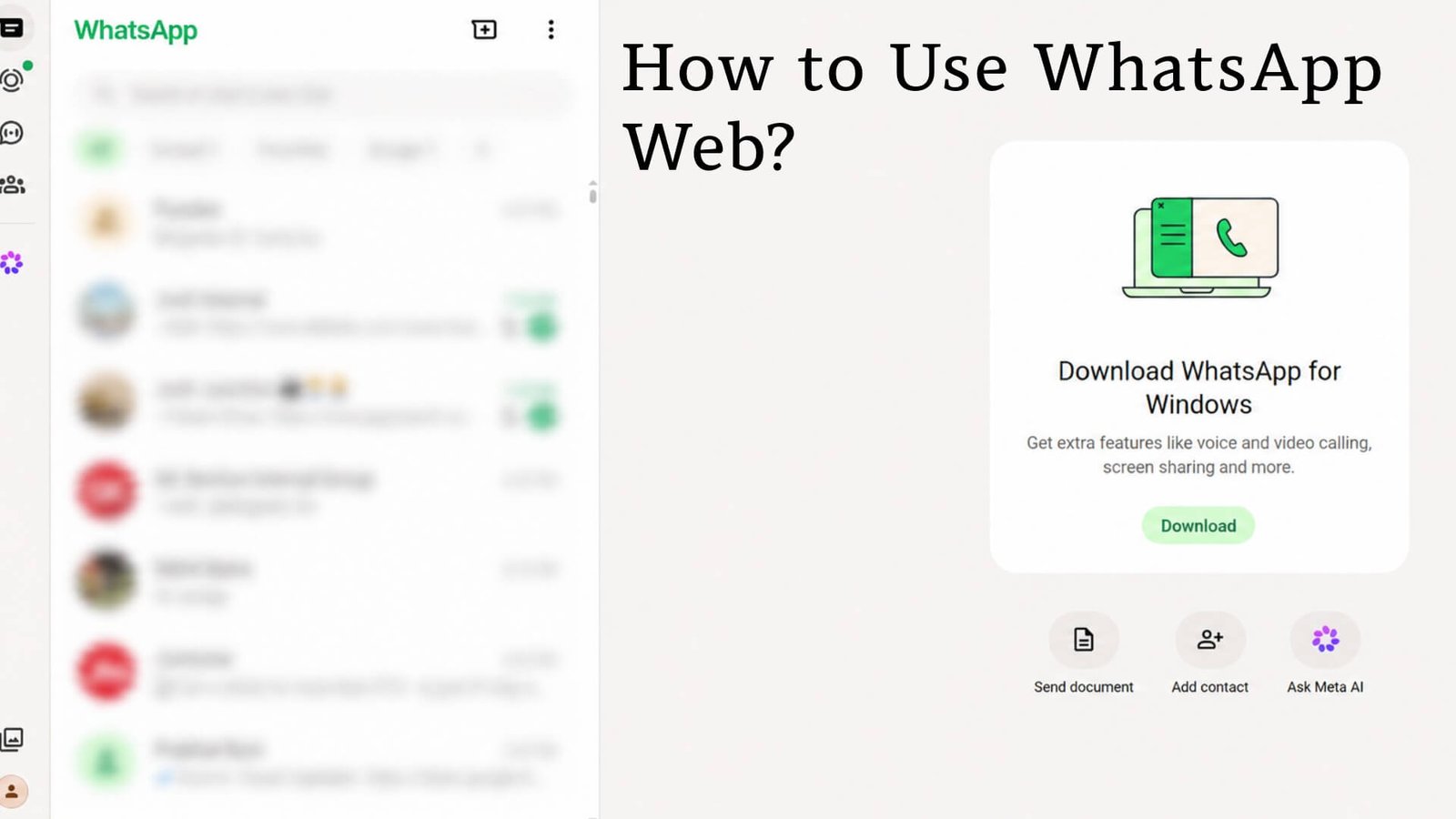
The best part is you can WhatsApp on laptops, desktops, tablets, and smartphones. The version of WhatsApp that can be used on a laptop and desktop is known as WhatsApp Web. But do you know how to use WhatsApp Web? WhatsApp Web is a tool that allows you to access all your conversations from any Internet browser.
In this article, you will learn how to use WhatsApp Web, a step-by-step guide on how to connect, how to use it, and how to troubleshoot common errors of WhatsApp Web.
What Is WhatsApp Web?
WhatsApp Web is the web-based version of WhatsApp, which will show your mobile chats directly on your computer screen. You do not need to download an app; you just simply go to the official website of WhatsApp, which is web.whatsapp.com, in any supported browser like Chrome or Mozilla Firefox, or any browser, and connect to your current WhatsApp account via a QR code. After connecting, you can sync your conversational text or messages, media, and contact list between your phone and computer in real-time. Anything you type on your computer shows up on your phone and vice versa. This is perfect for individuals who work at a desk for many hours and would prefer to type on a real keyboard instead of a touchscreen.
It’s important to note that WhatsApp Web is not the WhatsApp Desktop app, which is a standalone application that you install on your Windows or Mac. WhatsApp Web is not an app and can be accessed from just about any computer with an internet connection.
What Are The Features Of WhatsApp Web?
WhatsApp Web is not just a simple version of the app. It includes many advanced features that can be used on your browser, which include the following features:
Real-Time Message Syncing: All messages sent and received are synced in real-time from your phone to your computer. Whatever you have sent, any messages, images, videos, or documents, your conversation will remain on both devices, and all your messages will get synced on both devices without getting any problems. This feature is the same as you all use WhatsApp on your smartphones.
Send All Media Types: Just like in mobile, you can send or receive any photos, videos, audio messages, documents, stickers, and GIFs; the same way, you can all send and receive messages, photos, videos, documents, and stickers from your WhatsApp Web. This is another way to access files by simply dragging and dropping them into a chat window.
Group Chat Participation: WhatsApp Web fully supports group chats, like you all do on your mobiles. Send messages, reply to individual messages, access group information, control group participants, and modify group settings.
Desktop Notifications: When you receive a new message, your browser can show a notification, even if you’re not on that tab. So you don’t have to worry about missing an important message while you’re working.
End-to-End Encryption: WhatsApp Web messages are also end-to-end encrypted, just like those sent in the WhatsApp mobile app, says the official WhatsApp FAQ. No one can read your messages except you and the person you’re chatting with.
Emoji, Reactions, and GIFs: The entire keyboard of emojis is available, and you can react to messages in the same way you would do on your mobile. GIF search is also integrated into it.
Star and Archive Messages: Star important messages for easy retrieval later on, or archive chats to ensure your inbox remains tidy, but nothing is deleted.
Dark Mode: WhatsApp Web has introduced dark mode, which can be activated through the Settings menu to help prevent eye strain during late-night chats.
Disappearing Messages: You can configure the timer for disappearing messages for individual chats or set it as default for all new messages (24 hours, 7 days, or 90 days).
Voice and Video Calls (Browser): WhatsApp is making voice and video calls available directly in the browser, making it closer to parity with the desktop app. Screen sharing is available during video calls as well.
Trivia Facts
Whatsapp Web was originally dependent on an active phone connections only, but in latest model of cellphone, it has support for all functions. This is the major updates from WhatsApp Web.
Supported Browsers
WhatsApp Web is best on the latest versions of the following browsers:
- Google Chrome
- Mozilla Firefox
- Microsoft Edge
- Opera
- Safari
To use WhatsApp Web, these are the supported browsers, which you all can use for WhatsApp Web on your laptops, desktops, or tablets.
| Note: Suppose you are using an older browser like Internet Explorer; then this version of WhatsApp is not supported in older versions of the browser. So, to use WhatsApp Web, it is always recommended that you use the latest and updated version of browsers. |
How to Connect Your Phone to WhatsApp Web?
Here is a simple step-by-step guide to connect your phone to WhatsApp Web. These steps will guide you on how to use WhatsApp Web and how to connect your phone to WhatsApp. Follow these steps given below:
Step 1: Open WhatsApp Web on Your Computer: On your computer, open a supported browser and go to web.whatsapp.com. A QR code will appear on the screen. Keep this tab open.

Step 2: Open WhatsApp on Your Phone: Pick up your phone and go to the WhatsApp app.
Step 3: Click on the three-dot menu.

Step 4: Navigate to Linked Devices
- On Android: Tap the three-dot menu icon at the top right corner and select “Linked devices.”
- On iPhone: Tap “Settings” in the bottom right corner, then tap “Linked devices.”
Step 5: Tap “Link a Device”: You will see a button that says “Link a device.” Tap it. Your phone may ask for biometric verification such as a fingerprint or Face ID before proceeding.
Step 6: Scan the QR Code: Point your phone’s camera at the QR code displayed on your computer screen. Your phone will automatically recognize and scan it.
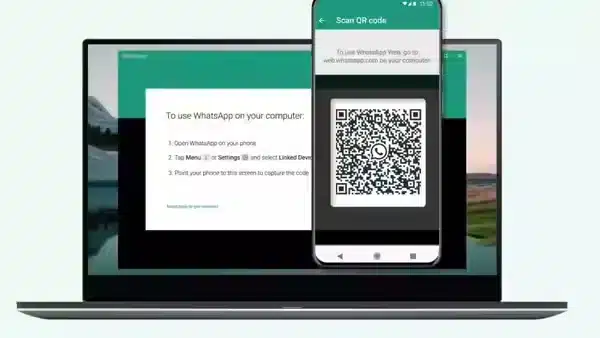
Step 7: You Are Connected: Within seconds, your chats will load in the browser and WhatsApp Web will be ready to use. You do not need to keep your phone open or nearby, as WhatsApp now supports multi-device functionality without requiring the phone to be connected to the internet at all times.
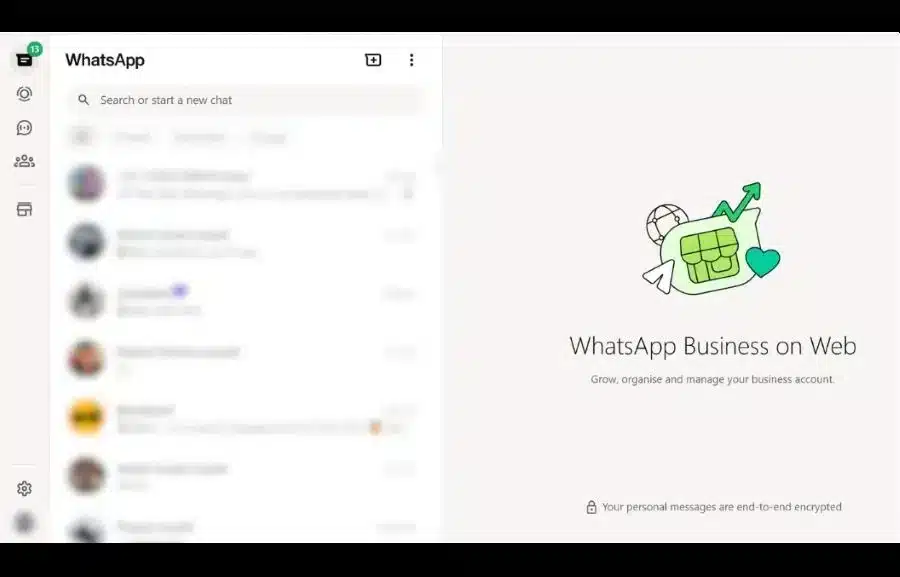
| Note: Here is a small tip from WhatsApp: You can link up to four devices to a single WhatsApp account. Each linked device operates independently, so your conversations stay accessible even if your phone’s battery dies. |
How to Use WhatsApp Web Effectively
Here are some useful tips on how to use WhatsApp Web effectively once you are connected online:
You can Pin the Important Chats: Right-click on any chat and select “Pin chat” to keep your most important conversations at the top of your list.
You Can Also Use Keyboard Shortcuts: Press Ctrl + N (or Cmd + N on Mac) to start a new chat. Use Ctrl + F to search within a conversation. Arrow keys help you navigate between chats quickly.
You Can also Drag and Drop Any Files: You can drag any file from your desktop directly into the chat window to send it without clicking through menus.
Reply to Specific Messages: If you want to send any specific message, click the arrow icon to reply to that specific message in a thread, keeping conversations organized.
Mute Notifications for a Chat: Right-click any chat and select “Mute notifications” to silence alerts for 8 hours, 1 week, or indefinitely.
Search Across Chats: Use the search bar at the top of the chat list to find messages, contacts, or media across all your conversations.
How to Enable Dark Mode on WhatsApp Web?
If you prefer a darker interface, especially at night, enabling dark mode is straightforward:
- Open WhatsApp Web in your browser.

- Click the personal profile icon and click the Chats option.

- From the Chats option, click the Theme option.
- Choose from Dark, Light, or System default (which follows your computer’s theme setting).

- Click OK to apply.
How to Enable Disappearing Messages on WhatsApp Web
WhatsApp Web allows you to set messages to automatically disappear after a set period. This is useful for privacy-conscious conversations.
For a specific chat:
- Open the chat.
- Click the contact name or group name at the top.
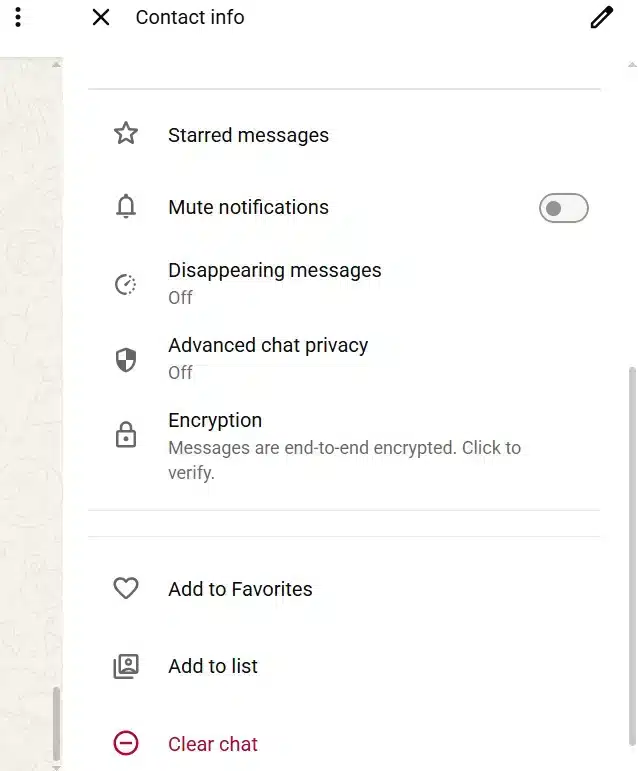
- Select Disappearing messages.
- Choose a duration: 24 hours, 7 days, or 90 days.
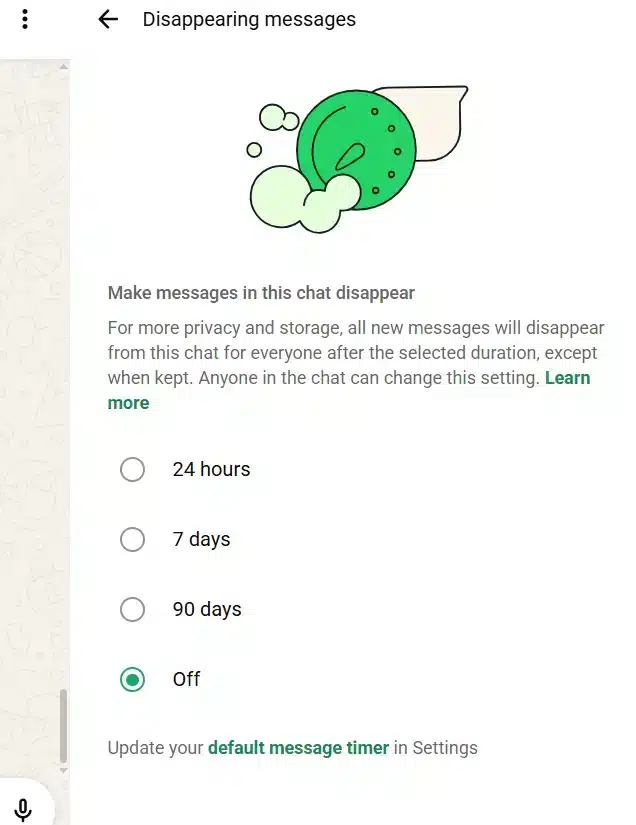
- Confirm by clicking the green checkmark.
As a default for all new chats:
- Click the three-dot menu and go to Settings.
- Select Privacy, then Default message timer.
- Choose your preferred duration.
Only messages sent after enabling this feature will disappear. Previous messages remain unaffected.
How to Log Out of WhatsApp Web From Your Laptop or Desktop?
You can log out of WhatsApp Web on your laptop from your mobile phone or WhatsApp Web directly.
If you want to log out of WhatsApp Web from the browser: Click the three-dot menu in WhatsApp Web, then select Log out.
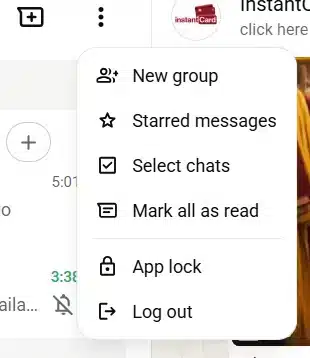
If you want to log out of WhatsApp Web from your phone:
- Open WhatsApp and go to Linked devices (from the three-dot menu on Android or Settings on iPhone).

- You will see a list of all active sessions, including the browser session.

- Tap on the session you want to end.

- Select Log out.
WhatsApp Web vs WhatsApp Desktop: What Is the Difference?
Many users wonder whether using WhatsApp Web in a browser and downloading the standalone WhatsApp Desktop app are the same thing. They are not, and here is how they differ:
| Feature | WhatsApp Web (Browser) | WhatsApp Desktop (App) |
|---|---|---|
| Installation required | No | Yes |
| Voice and video calls | Rolling out gradually | Fully supported |
| Works offline | No | Limited |
| Screen sharing | During video calls | Supported |
| Best for | Occasional or temporary use | Regular, daily use |
If you use WhatsApp extensively for work, then you should download the WhatsApp desktop app from the official WhatsApp website to get a more stable and full-featured experience. But, if you are using WhatsApp temporarily on your laptop or for limited work, then WhatsApp Web can be the best and right choice for you.
How to Troubleshoot the Common WhatsApp Web Issues?
Even if you configure everything correctly, you might have issues from time to time. Most common problems and their solutions.
“Computer not connected” yellow banner:
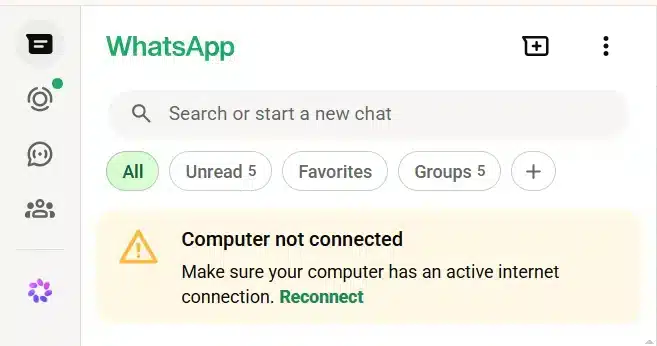
If this message appears, then it might be that your internet connection has been lost or is too weak. Check your Wi-Fi or network connection and refresh the page.
QR code not scanning: Make sure your phone’s camera is clean and there is enough light. Try moving the phone slightly closer or farther from the screen. If the QR code has expired (it refreshes every 30 to 60 seconds), wait for a new one to generate automatically.
Messages not loading or syncing: Try the following steps in order:
- Refresh the WhatsApp Web page.
- Clear your browser’s cache and cookies (check your browser’s help section for exact steps).
- Log out of WhatsApp Web and log back in by scanning a fresh QR code.
- Restart your computer.
WhatsApp Web blocked on your network: Some office or university Wi-Fi networks block certain services. If you receive a notification saying the network is preventing WhatsApp from working, ask your IT department to allow traffic to web.whatsapp.com and .whatsapp.net, or switch to mobile data.
Browser compatibility issues: Ensure you are using a supported and up-to-date browser. Internet Explorer is not supported. Switching to Chrome or Edge usually resolves most compatibility problems. To use WhatsApp Web on a laptop, tablet, or desktop, use only an updated browser to log in to WhatsApp.
So, now you all know how to use WhatsApp Web. This complete step-by-step guide will help you connect without having to pick up your phone all the time for your conversation.Sharing is always known to be the best part. So do share with your friend, and to read more articles like this, visit GKinfoBuzz regularly.